> ## Documentation Index
> Fetch the complete documentation index at: https://platform.stepfun.ai/docs/llms.txt
> Use this file to discover all available pages before exploring further.
# Image understanding best practices
Stepfun vision models let you send images in a conversation so the model can ground its answers in what it sees (follow-up questions about an image, describing content, etc.).
We recommend `step-3.7-flash` with `detail` enabled by default for the best visual quality.
## Capability limits
* `step-3.7-flash` supports JPG/JPEG, PNG, static GIF, and WebP. Images can be passed via URL or Base64.
* A single request supports up to 60 images. If you exceed the limit, summarize images first and use the summaries as context.
## How to use image understanding
### Simple image understanding
Add an `image_url` item to the message content. URLs are preferred over Base64 for performance.
```python theme={null}
from openai import OpenAI
import os
API_KEY = os.getenv("API_KEY")
client = OpenAI(api_key=API_KEY, base_url="https://api.stepfun.ai/v1")
completion = client.chat.completions.create(
model="step-3.7-flash",
messages=[
{
"role": "system",
"content": "You are the Stepfun assistant. You speak multiple languages and can accurately describe images provided by users. Respond quickly and safely; refuse harmful content.",
},
{
"role": "user",
"content": [
{"type": "text", "text": "Describe this image in elegant language."},
{
"type": "image_url",
"image_url": {
"url": "https://www.stepfun.com/assets/section-1-CTe4nZiO.webp"
},
},
],
},
],
)
print(completion.model_dump_json(indent=3))
```
### Multi-turn with images
Keep prior image messages in the conversation for follow-up questions.
```python theme={null}
from openai import OpenAI
import os
API_KEY = os.getenv("API_KEY")
client = OpenAI(api_key=API_KEY, base_url="https://api.stepfun.ai/v1")
completion = client.chat.completions.create(
model="step-3.7-flash",
messages=[
{
"role": "system",
"content": "You are the Stepfun assistant...",
},
{
"role": "user",
"content": [
{"type": "text", "text": "Describe this image in elegant language."},
{
"type": "image_url",
"image_url": {"url": "https://www.stepfun.com/assets/section-1-CTe4nZiO.webp"},
},
],
},
{
"role": "assistant",
"content": "A modern building stands in a quiet plaza, warm lights tracing its clean lines while trees and gentle lamps add calm."
},
{
"role": "user",
"content": "Which country is this likely in?"
}
],
)
print(completion.model_dump_json(indent=3))
```
### Multiple images
Pass multiple `image_url` entries. Maximum images depend on the model (10–50 per request). If you exceed the limit, see the guidance below.
```python theme={null}
from openai import OpenAI
import os
API_KEY = os.getenv("API_KEY")
client = OpenAI(api_key=API_KEY, base_url="https://api.stepfun.ai/v1")
completion = client.chat.completions.create(
model="step-3.7-flash",
messages=[
{
"role": "system",
"content": "You are the Stepfun assistant...",
},
{
"role": "user",
"content": [
{"type": "text", "text": "Describe these two photos succinctly."},
{"type": "image_url", "image_url": {"url": "https://www.stepfun.com/assets/section-1-CTe4nZiO.webp"}},
{"type": "image_url", "image_url": {"url": "https://postimg.aliavv.com/step/daesog.png"}},
],
},
],
)
print(completion.model_dump_json(indent=3))
```
### Use the `detail` parameter
`step-3.7-flash` defaults to low detail for speed (about 169 tokens per image). Set `detail="high"` to capture fine details; token usage then scales with image size and latency increases.
```python theme={null}
from openai import OpenAI
import os
API_KEY = os.getenv("API_KEY")
client = OpenAI(api_key=API_KEY, base_url="https://api.stepfun.ai/v1")
# Low detail (default)
completion = client.chat.completions.create(
model="step-3.7-flash",
messages=[
{"role": "system", "content": "You are the Stepfun assistant..."},
{
"role": "user",
"content": [
{"type": "text", "text": "Describe this photo."},
{"type": "image_url", "image_url": {"url": "https://postimg.aliavv.com/step/daesog.png"}}
],
},
],
)
print("low detail", completion.usage)
# High detail
completion = client.chat.completions.create(
model="step-3.7-flash",
messages=[
{"role": "system", "content": "You are the Stepfun assistant..."},
{
"role": "user",
"content": [
{"type": "text", "text": "Describe this photo."},
{
"type": "image_url",
"image_url": {
"url": "https://postimg.aliavv.com/step/daesog.png",
"detail": "high"
}
}
],
},
],
)
print("high detail", completion.usage)
```
### Use Base64 images
If you prefer not to host images, send them as Base64 data URLs. Convert the image to Base64, then prefix it with the appropriate media type.
 ```python copy theme={null}
import base64
with open("./sample.jpg", "rb") as image_file:
base64_bytes = base64.b64encode(image_file.read())
print(base64_bytes)
```
```js copy theme={null}
const fs = require('fs');
const imageBuffer = fs.readFileSync('./sample.jpg');
const base64Image = imageBuffer.toString('base64');
console.log(base64Image)
```
Common data URL prefixes:
| Extension | MIME type | Prefix |
| --------- | ---------- | ------------------------- |
| jpg | image/jpeg | `data:image/jpeg;base64,` |
| png | image/png | `data:image/png;base64,` |
| gif | image/gif | `data:image/gif;base64,` |
| webp | image/webp | `data:image/webp;base64,` |
### Speed up image understanding with the Files API
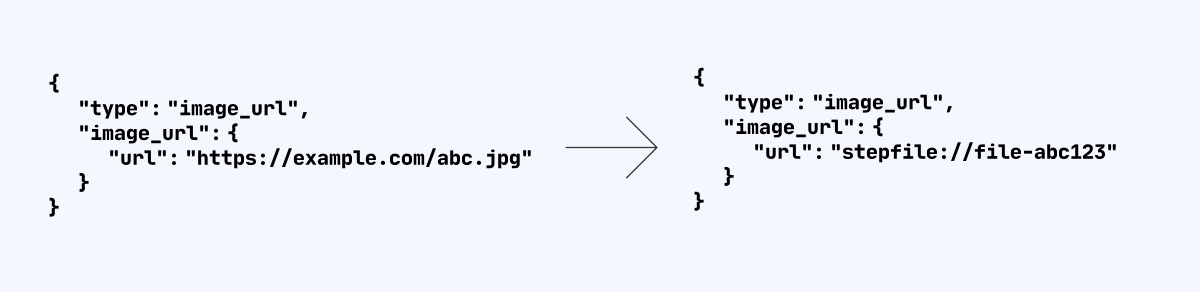
If you pass an external URL, Stepfun must download it, so network speed affects latency. Host images on CDN or high-bandwidth storage. For frequent reuse (e.g., few-shot), upload via the Files API with **purpose=storage** and prefix the returned File ID with `stepfile://` in chat messages. The model will fetch directly from Stepfun storage, avoiding repeated downloads.
```python copy theme={null}
import base64
with open("./sample.jpg", "rb") as image_file:
base64_bytes = base64.b64encode(image_file.read())
print(base64_bytes)
```
```js copy theme={null}
const fs = require('fs');
const imageBuffer = fs.readFileSync('./sample.jpg');
const base64Image = imageBuffer.toString('base64');
console.log(base64Image)
```
Common data URL prefixes:
| Extension | MIME type | Prefix |
| --------- | ---------- | ------------------------- |
| jpg | image/jpeg | `data:image/jpeg;base64,` |
| png | image/png | `data:image/png;base64,` |
| gif | image/gif | `data:image/gif;base64,` |
| webp | image/webp | `data:image/webp;base64,` |
### Speed up image understanding with the Files API
If you pass an external URL, Stepfun must download it, so network speed affects latency. Host images on CDN or high-bandwidth storage. For frequent reuse (e.g., few-shot), upload via the Files API with **purpose=storage** and prefix the returned File ID with `stepfile://` in chat messages. The model will fetch directly from Stepfun storage, avoiding repeated downloads.
 ## FAQ
### Instruction-following when many images
Images become image tokens. In long contexts the model may focus on later prompts. Place images early and instructions later so the model prioritizes the instructions.
### Exceeding image limits
If you exceed the image cap, first summarize images with the vision model, then use those summaries as context.
```python theme={null}
from openai import OpenAI
import os
API_KEY = os.getenv("API_KEY")
client = OpenAI(api_key=API_KEY, base_url="https://api.stepfun.ai/v1")
def get_description_from_img(img_url: str):
completion = client.chat.completions.create(
model="step-3.7-flash",
messages=[
{"role": "system", "content": "You are the Stepfun assistant..."},
{
"role": "user",
"content": [
{"type": "text", "text": "Describe this image in detail."},
{"type": "image_url", "image_url": {"url": img_url, "detail": "high"}},
],
},
],
)
return completion.choices[0].message.content
real_chat_context = []
real_chat_context.append({
"role": "user",
"content": get_description_from_img("https://www.stepfun.com/assets/section-1-CTe4nZiO.webp"),
})
print(real_chat_context)
# Use real_chat_context as part of the next chat request.
```
### Optimize images to reduce first-token latency
If latency matters more than perfect detail, resize or compress images while preserving most information.
* Resize images:
* For `detail` low/default: scale the longest side to 728px (keep aspect ratio).
* For `detail` high: scale the longest side to a multiple of 504px.
* Compress images:
* Set quality to \~80 to shrink file size without major quality loss.
* Resize images:
* For `detail` low/default: scale the longest side to 1280px.
* For `detail` high: scale the longest side to 2688px.
* Compress images:
* Set quality to \~80 to shrink file size without major quality loss.
```python theme={null}
from PIL import Image
# pip install Pillow
def compress(input_path, output_path, quality):
image = Image.open(input_path)
image.save(output_path, quality=quality)
# Resize so the longest side is max_size while keeping aspect ratio
def resize_image(input_path, output_path, max_size):
image = Image.open(input_path)
width, height = image.size
if width > height:
new_width = max_size
new_height = int((max_size / width) * height)
else:
new_height = max_size
new_width = int((max_size / height) * width)
resized_image = image.resize((new_width, new_height), Image.ANTIALIAS)
resized_image.save(output_path)
resize_image('input.jpg', 'resized_output.jpg', 2688)
compress('input.jpg', 're_quality_output.jpg', 80)
```
### Handling transparent PNG backgrounds
`step-3.7-flash` supports transparent PNGs but treats transparent regions as black. Preprocess by placing the image on a white background:
```python theme={null}
from PIL import Image
def convert_rgba_to_rgb_with_white_background(input_path, output_path):
img = Image.open(input_path)
if img.mode != 'RGBA':
raise ValueError("Input image is not RGBA")
white_background = Image.new('RGB', img.size, (255, 255, 255))
white_background.paste(img, mask=img.split()[3])
result = white_background.convert("RGB")
result.save(output_path)
```
## FAQ
### Instruction-following when many images
Images become image tokens. In long contexts the model may focus on later prompts. Place images early and instructions later so the model prioritizes the instructions.
### Exceeding image limits
If you exceed the image cap, first summarize images with the vision model, then use those summaries as context.
```python theme={null}
from openai import OpenAI
import os
API_KEY = os.getenv("API_KEY")
client = OpenAI(api_key=API_KEY, base_url="https://api.stepfun.ai/v1")
def get_description_from_img(img_url: str):
completion = client.chat.completions.create(
model="step-3.7-flash",
messages=[
{"role": "system", "content": "You are the Stepfun assistant..."},
{
"role": "user",
"content": [
{"type": "text", "text": "Describe this image in detail."},
{"type": "image_url", "image_url": {"url": img_url, "detail": "high"}},
],
},
],
)
return completion.choices[0].message.content
real_chat_context = []
real_chat_context.append({
"role": "user",
"content": get_description_from_img("https://www.stepfun.com/assets/section-1-CTe4nZiO.webp"),
})
print(real_chat_context)
# Use real_chat_context as part of the next chat request.
```
### Optimize images to reduce first-token latency
If latency matters more than perfect detail, resize or compress images while preserving most information.
* Resize images:
* For `detail` low/default: scale the longest side to 728px (keep aspect ratio).
* For `detail` high: scale the longest side to a multiple of 504px.
* Compress images:
* Set quality to \~80 to shrink file size without major quality loss.
* Resize images:
* For `detail` low/default: scale the longest side to 1280px.
* For `detail` high: scale the longest side to 2688px.
* Compress images:
* Set quality to \~80 to shrink file size without major quality loss.
```python theme={null}
from PIL import Image
# pip install Pillow
def compress(input_path, output_path, quality):
image = Image.open(input_path)
image.save(output_path, quality=quality)
# Resize so the longest side is max_size while keeping aspect ratio
def resize_image(input_path, output_path, max_size):
image = Image.open(input_path)
width, height = image.size
if width > height:
new_width = max_size
new_height = int((max_size / width) * height)
else:
new_height = max_size
new_width = int((max_size / height) * width)
resized_image = image.resize((new_width, new_height), Image.ANTIALIAS)
resized_image.save(output_path)
resize_image('input.jpg', 'resized_output.jpg', 2688)
compress('input.jpg', 're_quality_output.jpg', 80)
```
### Handling transparent PNG backgrounds
`step-3.7-flash` supports transparent PNGs but treats transparent regions as black. Preprocess by placing the image on a white background:
```python theme={null}
from PIL import Image
def convert_rgba_to_rgb_with_white_background(input_path, output_path):
img = Image.open(input_path)
if img.mode != 'RGBA':
raise ValueError("Input image is not RGBA")
white_background = Image.new('RGB', img.size, (255, 255, 255))
white_background.paste(img, mask=img.split()[3])
result = white_background.convert("RGB")
result.save(output_path)
```