


Note
The Chinese and English guides cover the same model capabilities and main workflows. Sample inputs, prompts, output fields, and validation details may differ; follow the code in the guide you are reading. The companion Python scripts and Notebooks follow the Chinese guide.
1. Image understanding and structured outputs
Step 5 Preview can read text and images in the same message and respond with text. “Multimodal” means that the model can combine different input types. This guide uses its image-understanding capability to read tables. Model and input types
Applications often need to pass extracted information to other code. JSON Schema describes the target object using field names, types, and required fields; structured outputs use that schema to constrain the response shape. Whether the image was read correctly still requires a task-specific check. Structured outputs
This guide is for developers integrating image extraction into Python projects. Three small tables illustrate how image encoding, detail, a field schema, and null for missing values work together. The result is parsed into a Python object.
Workflow: Prepare images → Define fields → Send an image-and-text request → Check the returned object → Replace the images and fields.
2. Prerequisites and setup
2.1 Prerequisites
Required knowledge: Familiarity with Python functions, dictionaries, and JSON.
- Python 3.10 or later.
- A StepFun API key with access to step-5-preview.
- Sample images: the three PNG files linked below, saved under assets/vision/ in your project.

2.2 Create a Python environment
For an existing project, you can use its current virtual environment. For a new project, create an environment in any working directory. Run the following in a macOS or Linux terminal:
In Windows PowerShell, run:
After activation, confirm the Python version with the following command. All subsequent python commands refer to this environment’s interpreter.
2.3 Dependencies
This example uses only the Python standard library.
2.4 Configure credentials and run the example
Set STEP_API_KEY in the terminal that will run the example. Replace YOUR_STEP_API_KEY with your API key.
macOS / Linux:
Windows PowerShell:
Run the Python commands below in the same terminal. For a Notebook, start Jupyter from that terminal so its kernel inherits the variable. If the variable is unset, the code prompts for the key with input hidden.
Set REGION = "cn" for the China region, which uses .com endpoints, or "global" for the international region, which uses .ai endpoints. Use a key issued for the selected region.
Create vision_demo.py in your project and copy this guide's Python code blocks into that file in order. Run the bash and powershell blocks only in a terminal. After adding the definitions and calls, run:
2.5 Initialize the connection and credentials
BASE_URLS stores the regional endpoints, and REGION selects the endpoint for this run. get_key() prompts only when the environment variable is missing, which suits terminal use. A service can read the key directly from its deployment environment.
2.6 Set the HTTP timeout and read responses
The following post() function is the shared request helper for this guide. HTTP_TIMEOUT_SECONDS is a client setting that limits the wait for a network operation; configure it separately from reasoning effort or output length. The function returns the response bytes, the elapsed time through the end of the response read, and the content type.
chat() parses a chat response into a dictionary, response_record() extracts the final content and usage, and save_json() saves the results. In an existing project, these can form part of your response-handling layer. They do not change the capability parameters sent to the model.
This guide includes three PNG files. Copy the supplied assets directory into your project and run commands with the project directory as your working directory. If you download this article on its own, save the images below under assets/vision/. The images are sample data; all image-reading and request code is included below.
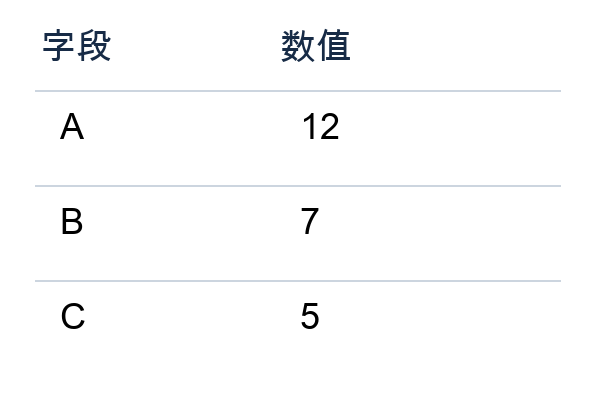
3. Extract a structured object from one image
3.1 Define fields and output constraints
All three fields are required, each value must be an integer or null, and additional fields are not allowed. null indicates that the image does not provide a readable numeric value. Reference answers are used to check the result and are not included in the request.
Parameter group: output fields in `response_format`. When adapting the example to business fields, update the names, types, and missing-value convention here first.
required specifies mandatory fields, and additionalProperties=False prevents extra fields. Allowing null gives the program an explicit representation for values missing from the image.
Parameter group: image `detail` and a strict schema. This example starts with high to examine small text in a table. When changing IMAGE_DETAIL, compare results for the same image and schema. Keep STRICT_SCHEMA true so the API returns the specified field structure.
Image encoding, extraction instructions, and the schema are combined in one request. The result handler below checks JSON parsing, field types, and reference values separately. These checks cover both format and content.
request_for() reads the image as bytes and encodes it as a Base64 data URL. Text instructions and the image appear in the same user message. response_format specifies a strict schema, and detail is set to high. The example imposes its own limit of PNG files smaller than 10 MB to keep inputs and outputs easy to inspect.
3.2 Send a request and inspect the fields
Define a reusable image-reading function, then process the first image.
The reference object for this image is {"A": 12, "B": 7, "C": 5}. Inspect the actual result in content, then parse_ok, schema_ok, and correct_fields under checks. These answer three separate questions: can the result be parsed, does it have the expected shape, and do the fields match the image?
4. Understand the key choices and handle a blank field
4.1 Represent missing values explicitly
The C cell is blank in the second image. Both the prompt and schema allow null, so downstream code can handle the missing value explicitly.
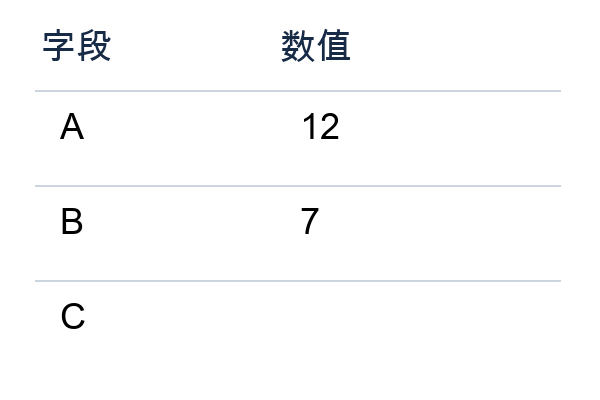
The reference object for this image is {"A": 12, "B": 7, "C": null}. JSON null becomes None when parsed in Python.
4.2 Update three components when changing fields
JSON Mode focuses on parseable JSON. This example uses JSON Schema to constrain fields and types further. Once the format meets those constraints, check the field meanings against the image content. For API details, see structured outputs.
5. Read the results
Combine the two requests to inspect the number of correct fields and whether each complete object meets the requirements. Two images are enough to illustrate the mechanism. To evaluate a real task, add representative images with different sizes, layouts, and levels of clarity.
6. Replace an image and use your own fields
The third image changes B from 7 to 9 while preserving the layout. Reuse the existing function; the result should reflect the changed image content.
Place your images in ASSET_DIR, then add their filenames and known reference answers to IMAGES. If only the image changes, the calling code can stay the same. When adding fields, update the extraction instructions, schema, and checking function together. In an application, retain both structural checks and business-field checks before passing the Python object downstream.
Model and image-input reference: Step 5 Preview. The three sample images are demonstration assets generated for this project.
7. Companion code and starter project
This example includes a Jupyter Notebook, an editable Python script, and a starter project for running and adapting the code. Browse the example directory for all files, or see the setup and launch guide for instructions.
To use the launchers, obtain the complete example directory from the current repository and keep its relative paths intact. Initial setup requires an internet connection. The supplied Notebook, Python script, launch menu, and setup guide currently follow the Chinese version. To reproduce this guide's English prompts, sample inputs, and result fields, use the Python code blocks in this guide.