

Documentation Index
Fetch the complete documentation index at: https://platform.stepfun.ai/docs/llms.txt
Use this file to discover all available pages before exploring further.
Stepfun vision models let you send images in a conversation so the model can ground its answers in what it sees (follow-up questions about an image, describing content, etc.).
We recommend step-3.7-flash with detail enabled by default for the best visual quality.
Capability limits
step-3.7-flash supports JPG/JPEG, PNG, static GIF, and WebP. Images can be passed via URL or Base64.
- A single request supports up to 60 images. If you exceed the limit, summarize images first and use the summaries as context.
How to use image understanding
Simple image understanding
Add an image_url item to the message content. URLs are preferred over Base64 for performance.
from openai import OpenAI
import os
API_KEY = os.getenv("API_KEY")
client = OpenAI(api_key=API_KEY, base_url="https://api.stepfun.ai/v1")
completion = client.chat.completions.create(
model="step-3.7-flash",
messages=[
{
"role": "system",
"content": "You are the Stepfun assistant. You speak multiple languages and can accurately describe images provided by users. Respond quickly and safely; refuse harmful content.",
},
{
"role": "user",
"content": [
{"type": "text", "text": "Describe this image in elegant language."},
{
"type": "image_url",
"image_url": {
"url": "https://www.stepfun.com/assets/section-1-CTe4nZiO.webp"
},
},
],
},
],
)
print(completion.model_dump_json(indent=3))
Multi-turn with images
Keep prior image messages in the conversation for follow-up questions.
from openai import OpenAI
import os
API_KEY = os.getenv("API_KEY")
client = OpenAI(api_key=API_KEY, base_url="https://api.stepfun.ai/v1")
completion = client.chat.completions.create(
model="step-3.7-flash",
messages=[
{
"role": "system",
"content": "You are the Stepfun assistant...",
},
{
"role": "user",
"content": [
{"type": "text", "text": "Describe this image in elegant language."},
{
"type": "image_url",
"image_url": {"url": "https://www.stepfun.com/assets/section-1-CTe4nZiO.webp"},
},
],
},
{
"role": "assistant",
"content": "A modern building stands in a quiet plaza, warm lights tracing its clean lines while trees and gentle lamps add calm."
},
{
"role": "user",
"content": "Which country is this likely in?"
}
],
)
print(completion.model_dump_json(indent=3))
Multiple images
Pass multiple image_url entries. Maximum images depend on the model (10–50 per request). If you exceed the limit, see the guidance below.
from openai import OpenAI
import os
API_KEY = os.getenv("API_KEY")
client = OpenAI(api_key=API_KEY, base_url="https://api.stepfun.ai/v1")
completion = client.chat.completions.create(
model="step-3.7-flash",
messages=[
{
"role": "system",
"content": "You are the Stepfun assistant...",
},
{
"role": "user",
"content": [
{"type": "text", "text": "Describe these two photos succinctly."},
{"type": "image_url", "image_url": {"url": "https://www.stepfun.com/assets/section-1-CTe4nZiO.webp"}},
{"type": "image_url", "image_url": {"url": "https://postimg.aliavv.com/step/daesog.png"}},
],
},
],
)
print(completion.model_dump_json(indent=3))
Use the detail parameter
step-3.7-flash defaults to low detail for speed (about 169 tokens per image). Set detail="high" to capture fine details; token usage then scales with image size and latency increases.
from openai import OpenAI
import os
API_KEY = os.getenv("API_KEY")
client = OpenAI(api_key=API_KEY, base_url="https://api.stepfun.ai/v1")
# Low detail (default)
completion = client.chat.completions.create(
model="step-3.7-flash",
messages=[
{"role": "system", "content": "You are the Stepfun assistant..."},
{
"role": "user",
"content": [
{"type": "text", "text": "Describe this photo."},
{"type": "image_url", "image_url": {"url": "https://postimg.aliavv.com/step/daesog.png"}}
],
},
],
)
print("low detail", completion.usage)
# High detail
completion = client.chat.completions.create(
model="step-3.7-flash",
messages=[
{"role": "system", "content": "You are the Stepfun assistant..."},
{
"role": "user",
"content": [
{"type": "text", "text": "Describe this photo."},
{
"type": "image_url",
"image_url": {
"url": "https://postimg.aliavv.com/step/daesog.png",
"detail": "high"
}
}
],
},
],
)
print("high detail", completion.usage)
Use Base64 images
If you prefer not to host images, send them as Base64 data URLs. Convert the image to Base64, then prefix it with the appropriate media type.

import base64
with open("./sample.jpg", "rb") as image_file:
base64_bytes = base64.b64encode(image_file.read())
print(base64_bytes)
const fs = require('fs');
const imageBuffer = fs.readFileSync('./sample.jpg');
const base64Image = imageBuffer.toString('base64');
console.log(base64Image)
Common data URL prefixes:
| Extension | MIME type | Prefix |
|---|
| jpg | image/jpeg | data:image/jpeg;base64, |
| png | image/png | data:image/png;base64, |
| gif | image/gif | data:image/gif;base64, |
| webp | image/webp | data:image/webp;base64, |
Speed up image understanding with the Files API
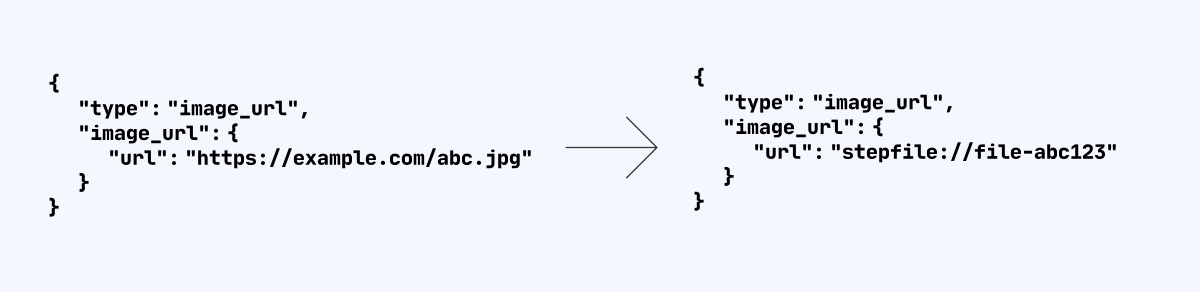
If you pass an external URL, Stepfun must download it, so network speed affects latency. Host images on CDN or high-bandwidth storage. For frequent reuse (e.g., few-shot), upload via the Files API with purpose=storage and prefix the returned File ID with stepfile:// in chat messages. The model will fetch directly from Stepfun storage, avoiding repeated downloads.
Instruction-following when many images
Images become image tokens. In long contexts the model may focus on later prompts. Place images early and instructions later so the model prioritizes the instructions.
Exceeding image limits
If you exceed the image cap, first summarize images with the vision model, then use those summaries as context.
from openai import OpenAI
import os
API_KEY = os.getenv("API_KEY")
client = OpenAI(api_key=API_KEY, base_url="https://api.stepfun.ai/v1")
def get_description_from_img(img_url: str):
completion = client.chat.completions.create(
model="step-3.7-flash",
messages=[
{"role": "system", "content": "You are the Stepfun assistant..."},
{
"role": "user",
"content": [
{"type": "text", "text": "Describe this image in detail."},
{"type": "image_url", "image_url": {"url": img_url, "detail": "high"}},
],
},
],
)
return completion.choices[0].message.content
real_chat_context = []
real_chat_context.append({
"role": "user",
"content": get_description_from_img("https://www.stepfun.com/assets/section-1-CTe4nZiO.webp"),
})
print(real_chat_context)
# Use real_chat_context as part of the next chat request.
Optimize images to reduce first-token latency
If latency matters more than perfect detail, resize or compress images while preserving most information.
- Resize images:
- For
detail low/default: scale the longest side to 728px (keep aspect ratio).
- For
detail high: scale the longest side to a multiple of 504px.
- Compress images:
- Set quality to ~80 to shrink file size without major quality loss.
- Resize images:
- For
detail low/default: scale the longest side to 1280px.
- For
detail high: scale the longest side to 2688px.
- Compress images:
- Set quality to ~80 to shrink file size without major quality loss.
from PIL import Image
# pip install Pillow
def compress(input_path, output_path, quality):
image = Image.open(input_path)
image.save(output_path, quality=quality)
# Resize so the longest side is max_size while keeping aspect ratio
def resize_image(input_path, output_path, max_size):
image = Image.open(input_path)
width, height = image.size
if width > height:
new_width = max_size
new_height = int((max_size / width) * height)
else:
new_height = max_size
new_width = int((max_size / height) * width)
resized_image = image.resize((new_width, new_height), Image.ANTIALIAS)
resized_image.save(output_path)
resize_image('input.jpg', 'resized_output.jpg', 2688)
compress('input.jpg', 're_quality_output.jpg', 80)
Handling transparent PNG backgrounds
step-3.7-flash supports transparent PNGs but treats transparent regions as black. Preprocess by placing the image on a white background:
from PIL import Image
def convert_rgba_to_rgb_with_white_background(input_path, output_path):
img = Image.open(input_path)
if img.mode != 'RGBA':
raise ValueError("Input image is not RGBA")
white_background = Image.new('RGB', img.size, (255, 255, 255))
white_background.paste(img, mask=img.split()[3])
result = white_background.convert("RGB")
result.save(output_path)